Project settings
Set the rules once per project and every ticket uses them. Settings live in the Estimojo project page in Jira, side by side with the Analytics tab.
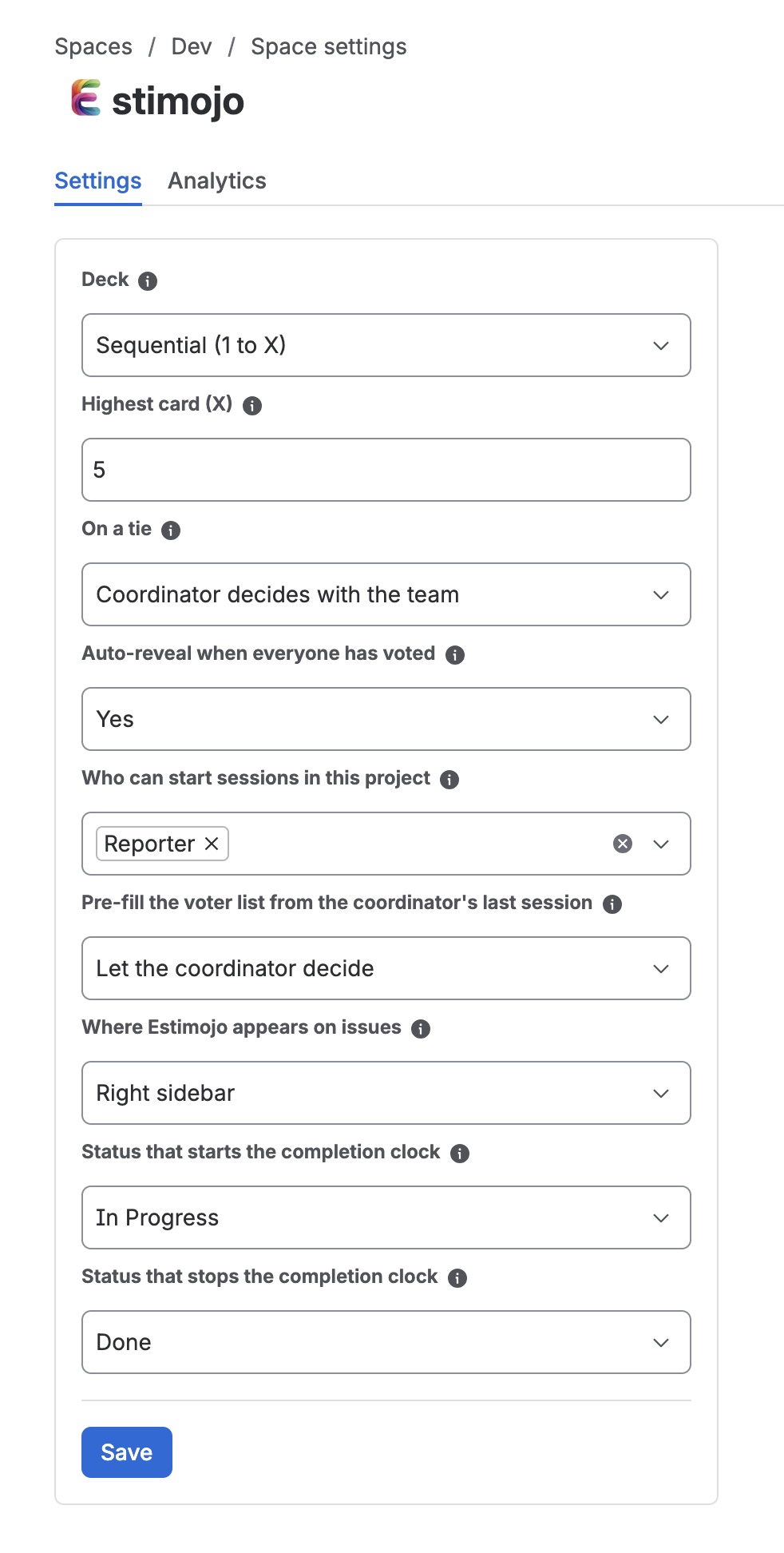
Deck
Choose a sequential deck or a Fibonacci deck and set its highest card. The default is a sequential deck up to 10.
Tie rule
Decide how ties resolve on reveal: the coordinator picks from the tied values, the highest tied value wins automatically, or a value needs a strict majority to be pre-selected.
Who can start
Allow anyone to start sessions, or restrict starting to the ticket's reporter, assignee, or any combination of the two. When none of the allowed people exist on a ticket, say there is no assignee yet, anyone can start it.
Auto-reveal
With auto-reveal on, cards flip as soon as the last declared voter has voted. Turn it off and the coordinator reveals manually.
Placement
Choose where Estimojo appears on this project's tickets: the main panel, the right sidebar, or both. A short pointer in the other spot tells teammates where to look.
Completion clock and analytics
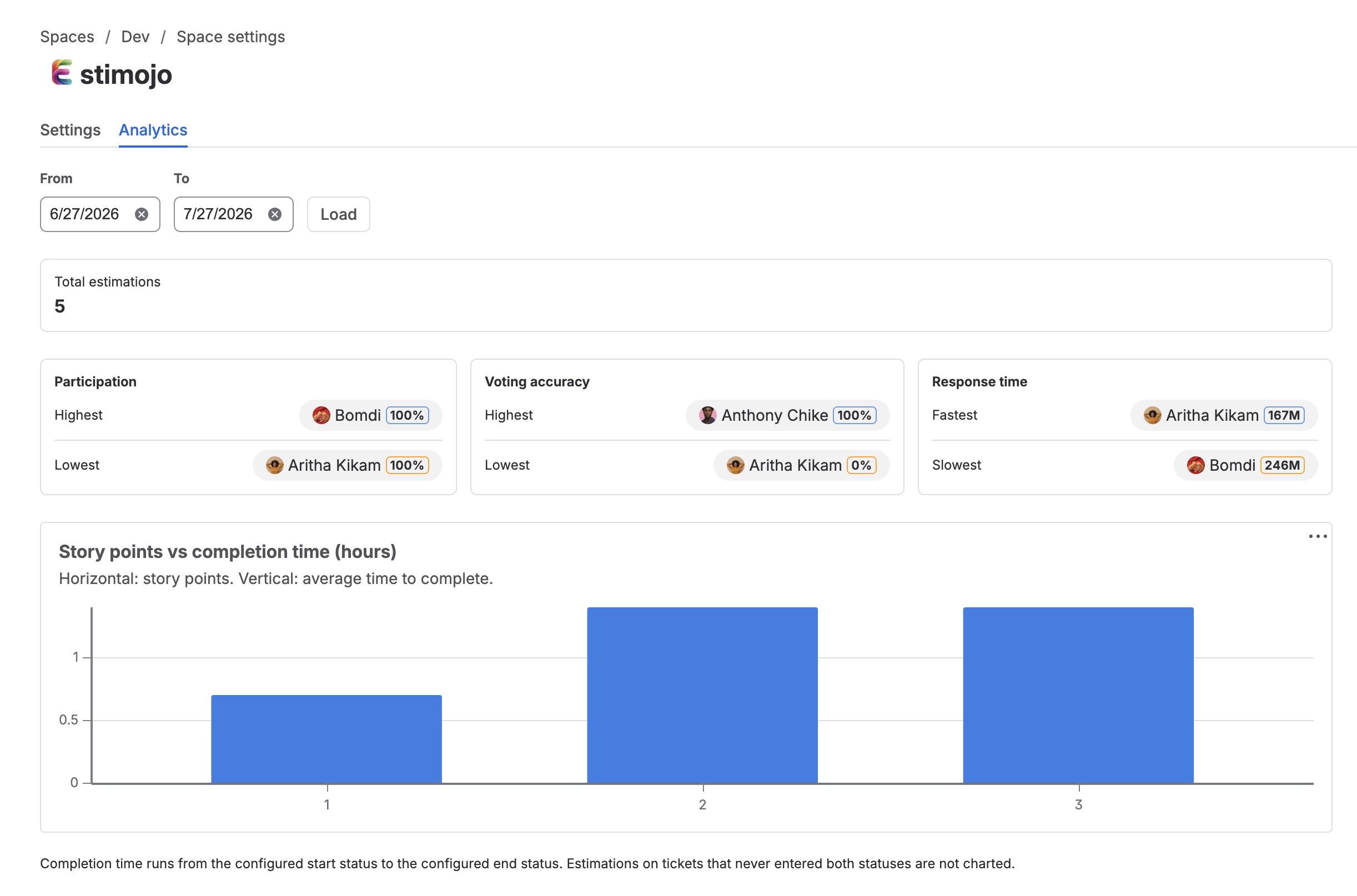
Two statuses drive the completion clock: one starts it, one stops it. The Analytics tab, for project admins, aggregates applied estimates over any range up to two years: totals, participation, voting accuracy, response speed, and a chart of story points against real completion time.
Reset
Resetting a session deletes its votes and starts fresh. Stale sessions untouched for more than a day can be reset by anyone.